PAGE 01
What the 1,048 total means
The official Steam page lists 1,048 objects for Hearth & Barrel. That is the number of placements in the shop, including repeated copies; it is not a published count of unique item names.
This page therefore separates two jobs. The route checklist covers the whole shop by category and completion state. The linked community catalog provides name-level lookup, but remains a secondary reference rather than an official game-data export.
| Field | Confirmed value | Boundary |
|---|---|---|
| Shop | Hearth & Barrel | Burg map |
| Objects to shelve | 1,048 | Includes repeated copies |
| Official unique-name total | Not published | Do not infer it from the object count |
| Name lookup | Community-maintained catalog | Verify against the in-game pickup or placard text |
PAGE 02
Complete the shop by category
Begin with large, visible collections to clear sight lines, then work through nearby small objects. Finish one named shelf before switching categories whenever possible; a completed placard turns the room into a shorter checklist.
Use this order as a route, not a claim that the game enforces it. If your starting position or clutter makes a neighboring category easier, finish that local batch before crossing the shop.
| Route group | Identification check | Finish condition |
|---|---|---|
| Eggs and large displays | Pickup label plus dedicated display | Every position in the named display is filled |
| Weapons | Rack emblem plus full item name | Each dagger, sword or other named rack is complete |
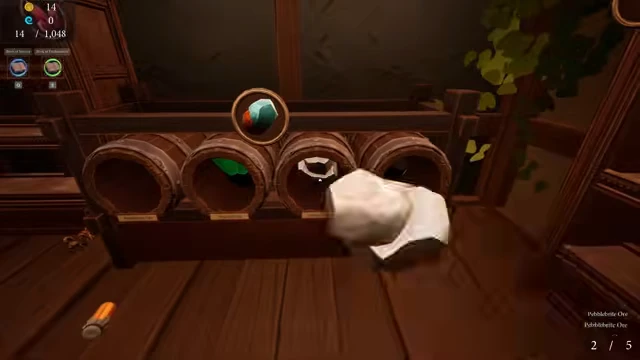
| Ores and crystals | Placard text, not stone color | All copies match the named barrel or shelf |
| Potions and bottles | Family plus exact variant | No similar-color bottle is mixed into the row |
| Books | Full title and edition | Chosen arrangement contains only the correct title |
| Food and vegetables | Pickup label plus category placard | Every named bin is complete |
| Toys, orbs and curiosities | Exact name on pickup and shelf | Remaining loose objects no longer belong to that collection |
PAGE 03
Verified example names
These examples already appear in the site’s reviewed evidence. They are not presented as the whole unique-item list. Use them to learn the lookup method, then verify every additional community-catalog name against the current client.
A visual nickname is not a substitute for the game label. For example, a toy’s appearance can help you recognize it, but the pickup or placard text decides the collection.
| Item | Working category or appearance | Check |
|---|---|---|
| Teddy Bear | Toy; dog figure | Confirm the pickup and shelf name |
| Thorlar | Toy; red octopus | Do not group only by color |
| Arcane Software | Orb; green | Use the orb placard |
| Starpebble Ore | Ore; white | Read the barrel label |
| Kakarotto | Vegetable; carrot | Use the vegetable bin name |
| Voidscale Egg | Large egg display | Match the one-item collection route |
PAGE 04
Find a name that is not in the examples
Open the community Hearth & Barrel catalog, search the exact pickup name, and use its category hint to find the right area. Back in the game, hover the destination placard and confirm that the text matches before placing the item.
If a guide name conflicts with the current client, the client label wins. Record the mismatch with version and date rather than silently changing the item into a different category.
PAGE 05
Final cleanup without repeating the whole shop
When you know the missing item name, hold a copy and use Arcane Sight to find matching loose copies or an existing shelf. When you do not know which objects remain, use Highlight Remaining Items only after an ordinary sweep.
Use Recover Lost Items for invisible, stuck or unreachable objects. After recovery, identify the returned pile by exact name and continue the category checklist; recovery moves objects but does not complete or categorize them automatically.
Library references
Steam — official store page and shop total →